Follow the Template (attached to Anna Z's email to me Jan 21 '26), use Word to make a Word Docx reproducing the template and answer the Template questions, so you have a long document which you can then copy/paste in segments to the template linked above.
When done, how to add this to your Cabrillo eLumen Program Plan document...
Log in to eLumen
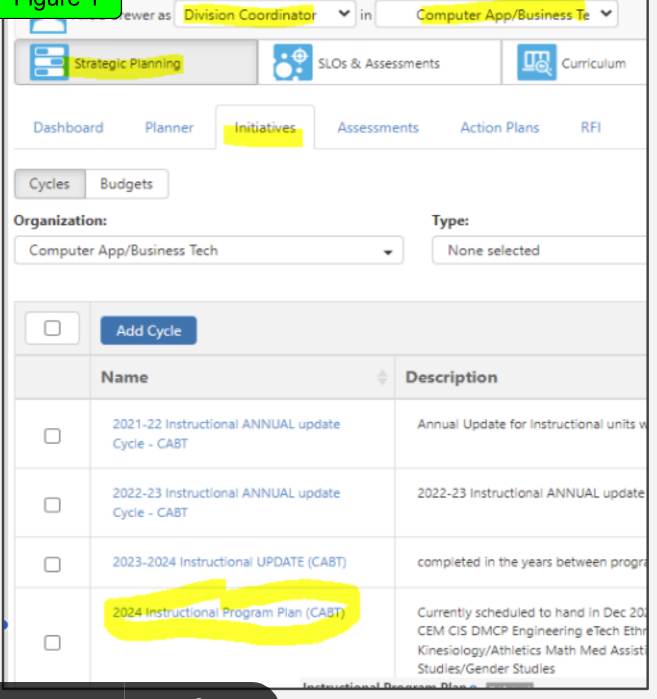
2 At the top, ensure your role is set to"Department Coordinator" of your department
3 Click on the "Strategic Planning" tab
4 Then click on the "Initiatives" subtab
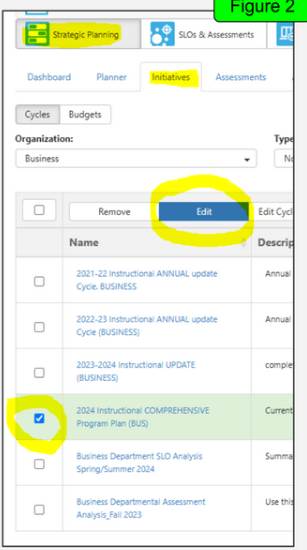
5 Click on the checkbox to the left of the "2025 Instructional COMPREHENSIVE Program Plan (Astronomy)" from the list (see Fig 1)
6 Click blue highlighted box "Edit." A text box will appear (fig 2).
To Add Content to your Prog Plan:
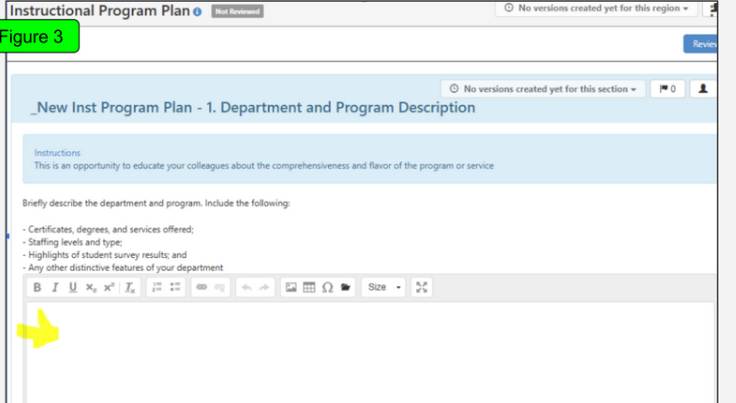
1 Copy the text from your Google Document or Word draft and paste it within the text boxes. The questions from the Google Doc line up with the text boxes in the
form. - Figure 3
To paste images into the text boxes:
1 Take a screenshot of the image (using the snipping tool on your computer, for example)
2 Copy the image/Paste the image into the text box within eLumen.
3. Note: The image will not show at this point. Don't worry; go to the next step - Figure 3
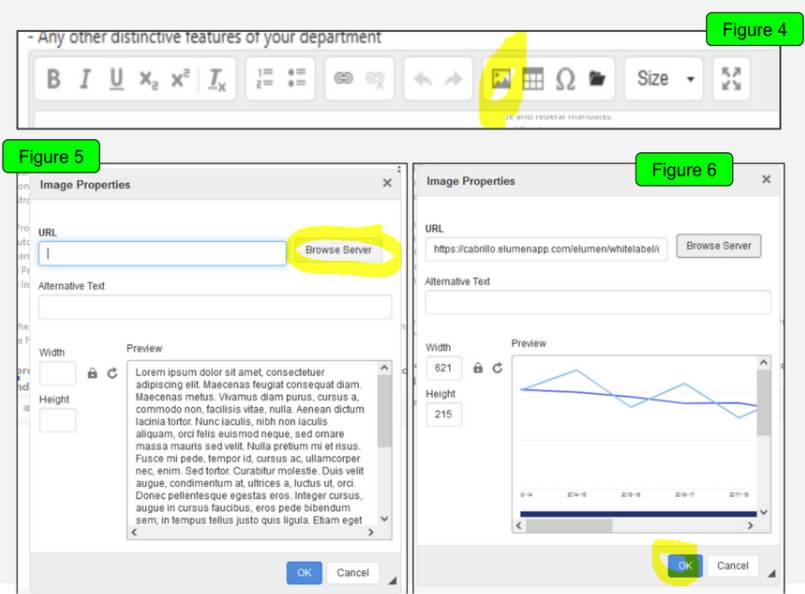
4 Click the image icon in the tool bar - Figure 4 5 In the image properties box that pops up, click Browse Server - Figure 5
6 In the next box, select the image you want, then click OK - Figure 6
7 Optional: adjust the image (lock the ratio, change the width, add alt text)
If you need further assistance with eLumen, please email Buff McKinley (bemckinl@cabrillo.edu).
Cabrillo Astronomy CAP Map of suggested courses to take in which semesters
https://www.cabrillo.edu/pro/dashboards/#SuccssCmpltn Click Success & Completion: Equity-Index on the right, then filter to Astronomy on the window that shows up. Or Dashboard for graphs and numbers, and you can click on Astronomy on left side
Student Surveys including for 24/25
* only in Ay3 did a majority of student answer the survey, most other courses had 20% or less answering
* 66% are taking Astro for GE req, 15% as astro majors, 23% for personal learning
* 68% prefer to take classes before 1pm,
*
40% of respondents are full time students, 30% taking 6 or less units (likely the personal learning group)
* 80% of students have only a high school deiploma, 15% have a Bachelors or higher degree.
* 68% prefer in-person classes, only 13% like on-line classes (by way of hybrid, Cabrillo Astro has some graded assignments with on-line completions and extended unlock Canvas times)
* Over 90% of respondents prefer to take their classes in Aptos, only 1 respondent preferred Watsonville
* Motivation for taking course: 68% interested in Astronomy, 53% met a requirement, 37% course offering time, 10-20% Recommended by friend, or expand job skills.
=========================================================================================
Your Course SLO's are Listed Here in eLumen.
SLO Assessment Process. Go to the SLO link.
* Be sure to first enter the semester of the course your assessing. For me, that's Fall 25. Be careful because it defaults to the current semester and that's bad!
*
You get a page that looks like this: SLO-1
* Use for 'type': Collective Student Assessment. Be careful because it defaults to "individualized student" and then you'll have to evaluate every single student on all SLO's!
* copy paste your longer descriptions of the assessment name and description and activity from a Word file you can save in case you have to start over or re-use for a later Assessment. For example "Astro 25 SLO eLumen boxes" inside thie ProPlan25 folder under HowToCab/proplan/ProPlan25.
* Upload "Evaluator Assessment Guide", this is a Word file you create which describes your SLO's and what you expect students to understand about them. Here's for Astro 3.
* When you've completed these boxes, at the bottom click on Generate Rubric Template and it'll then give a new page with where you can click on each SLO, it'll find that SLO and fill in that box with the literal words for the SLO. Do it one after the other for each SLO in each box.
* (if at some point you get "error during ajax request", it seems unrecoverable and I could only move on by re-logging into eLumen. It's some sort of java error I think.
* Now look at the tiny little box under "score". and hover over it and make sure it says "collective student assessment" and then click on it. This will now let you fill in the numbers for how "improvement" was good bad or N/A for how many students.
To edit an SLO already made, click on your writing in the SLO and you see it turn green and new button(s) including "edit SLO" appear. However, this ONLY allows you to modify the text in boxes. And at the bottom I found that if I hit "save" it then doubles all the responses, so a 47 student class now has 94 students graded. It's crazy. Instead, I found for Astro 3-2 with it's mistaken type, I had to simply click on the text to highlight it, and then hit the choice "remove", and then do that SLO assessment all over again. Be sure to save everything you write in any box to a Word file. eLumen will log you out if you don't finish in it's speedy time, and you then lose anything not completed.